Firewall Rules – In today’s digital world, securing your web server is more crucial than ever, especially with the constant rise of cyber threats. If you’re using cPanel to manage your server, a firewall plays a key role in defending your system against unauthorized access and malicious activity. But knowing which firewall rules to set up can be daunting, especially if you’re new to server management. In this post, we’ll break down the common firewall rules you should configure in cPanel to protect your server from common vulnerabilities.
Table of Contents
Why Set Up Firewall Rules in cPanel?
A firewall acts as a gatekeeper between your server and the internet. It filters incoming and outgoing traffic based on predetermined security rules. When properly configured, a firewall in cPanel can:
- Block unauthorized access to specific ports or services.
- Mitigate brute-force attacks on login pages.
- Limit access to specific IP ranges, increasing overall security.
- Prevent DDoS attacks by detecting and dropping malicious traffic.
Now, let’s look at the most critical firewall rules to set up in your cPanel environment.
1. Block Unnecessary Ports
By default, many ports remain open on a web server for communication. However, leaving unnecessary ports open can expose your server to security threats. Here’s a list of important ports to allow or block:
- Allow: Essential ports like 80 (HTTP), 443 (HTTPS), 21 (FTP), and 22 (SSH). Ensure that only services you actually use are accessible.
- Block: All other unused ports, such as 23 (Telnet), 1433 (SQL Server), and 3306 (MySQL, unless you need remote database access). This reduces the attack surface of your server.
Tip: Tools like ConfigServer Security & Firewall (CSF) in cPanel make it easy to manage and block unused ports.
2. Enable IP Whitelisting and Blacklisting
IP whitelisting and blacklisting are critical for managing who can access your server:
- IP Whitelisting: Add trusted IP addresses (e.g., your office network or developers’ IPs) to allow them unrestricted access to sensitive services like SSH or WHM.
- IP Blacklisting: Block known malicious IPs or ranges of IPs that have attempted suspicious activity on your server.
This rule helps prevent brute-force attacks by limiting the number of people who can access login pages like cPanel, WHM, or SSH.
3. Limit SSH Access
SSH is a powerful protocol for remote server management, but it’s also a common target for hackers. To secure SSH, configure the following firewall rules:
- Allow SSH Access Only from Trusted IPs: Restrict SSH access to your server by allowing it only from known, trusted IP addresses. This rule prevents unauthorized users from trying to log in.
- Change Default SSH Port: Moving the SSH port from the default (22) to a custom port can help evade automated attacks.
- Set Connection Limits: Limit the number of simultaneous connections or restrict login attempts within a specific timeframe to prevent brute-force attacks.
4. Protect Against DDoS Attacks
Distributed Denial of Service (DDoS) attacks are designed to overwhelm your server with traffic, causing downtime. To protect against DDoS attacks, implement these firewall rules:
- Limit Connection Rate: Set a rate limit for incoming traffic to drop suspicious requests that exceed a predefined limit. This can prevent attackers from flooding your server with fake requests.
- Enable SYN Flood Protection: This rule helps guard against SYN flood attacks, a common type of DDoS, by limiting the number of partially open connections.
5. Block Ping (ICMP) Requests
Ping (ICMP) requests are often used by attackers to discover open servers and potential vulnerabilities. If your server doesn’t need to respond to pings, block ICMP requests using your firewall:
- Disable Incoming ICMP Traffic: This prevents your server from responding to “ping” requests and reduces the chances of being targeted by network scans or attacks like ICMP flood.

6. Geo-Blocking
If your website or business only serves customers in specific regions, you can enhance security by blocking traffic from countries or regions known for high levels of cybercrime:
- Block Entire Countries: Use geo-blocking to restrict traffic from regions where you don’t have customers. For example, if you serve only U.S. customers, you can block traffic from other continents.
- Allow Only Specific Countries: Alternatively, you can allow traffic only from countries where your primary user base is located.
This strategy is particularly useful for preventing automated attacks originating from abroad.
7. Rate Limiting Login Attempts
Brute-force attacks target login pages like cPanel, FTP, and WordPress admin areas. One effective way to mitigate this risk is by limiting the number of login attempts:
- Set Login Attempt Limits: After a certain number of failed login attempts, temporarily block the IP address from which the login attempts originated. This can help fend off bots trying to guess credentials.
Tools like CSF in cPanel make it easy to enforce this rule.
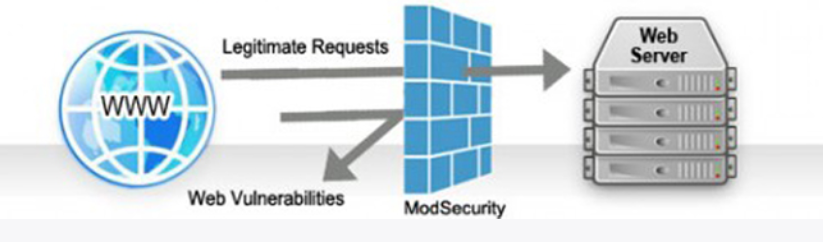
8. Enable ModSecurity for Web Application Firewall (WAF)
While firewalls protect your server’s network, a Web Application Firewall (WAF) like ModSecurity adds another layer of protection by filtering HTTP requests:
- Block SQL Injections and XSS Attacks: ModSecurity detects and blocks suspicious activity like SQL injections or cross-site scripting (XSS), preventing hackers from exploiting vulnerabilities in your web applications.
- Real-time Traffic Monitoring: Monitor incoming traffic for common attack patterns and block them before they reach your web applications.
Conclusion
Setting up the right firewall rules in cPanel is essential for maintaining the security of your web server. By blocking unnecessary ports, whitelisting trusted IPs, protecting against DDoS attacks, and using tools like ModSecurity and CSF, you can significantly reduce the risk of unauthorized access and cyberattacks.
Remember, configuring a firewall is not a one-time task. Regularly review and update your firewall rules to address new security challenges and ensure that your server remains secure.